
Norton360 Antivirus & Security
NortonMobileTools
4.6199.52K Reviews
- Version
- 26.21.0.261103359
- Installs
- 100.00M
- Age Rating
- Everyone
Screenshots
Our Review of Norton360 Antivirus & Security
 Analysis by Appyee
When I first installed Norton360 Antivirus & Security, I wanted to know what a first-time user could actually do with it, not just what a list of security tools promises. The useful starting point is simple: open the app, look through its security checks, and deal with the most relevant alert or recommendation before moving on. That makes the app feel less like a complicated control panel and more like a place to check the health of your phone.
Getting Started and Finding Your Bearings
The first thing I’d tell a friend is to approach Norton as a bundle of protections rather than a single virus scanner. It combines device security with tools for safer browsing and online privacy. That breadth is useful, but it also means you don’t need to switch everything on or understand every feature in the first few minutes. Start with the main security check, read what it reports, and use that result to decide what needs attention.
What to Expect From the App
This is a mobile security and privacy app from NortonMobile, in the tools category. It has a 4.6 average from around two million ratings and more than 50 million installs, so it is a familiar option for people who want a recognized security suite on a phone. It is free to install, rated for Everyone, and offers in-app purchases ranging from $0.99 to $264.99 per item. The current version is 26.1.0.260127077, and it requires Android 10 or later.
Those figures help set expectations, but they don’t tell you whether the app fits your habits. I’d think of it as a convenient collection of safeguards, not a substitute for careful choices online. A security app can help flag risks; it can’t make every download, message, or website safe by default. If you mainly want a basic manual scan and already rely on your phone’s built-in protections, a larger suite may feel like more than you need.
First Setup Without Rushing
When I first downloaded Norton360 Antivirus & Security, the installation process was super smooth. The app doesn’t take up a lot of space, which is a relief because my phone is already crammed with photos and other apps. It’s quick to set up, and before you know it, you're greeted with a sleek and intuitive interface.
For a first-time setup, I’d pause at each prompt and check what a feature is asking to do before granting access or enabling it. Security tools can need permissions to provide particular protections, and it’s better to understand the purpose than to tap through automatically. If you’re unsure about an option, leave it until you have a reason to use it; you can explore the app’s tools later rather than trying to configure everything at once.
Your First Useful Action
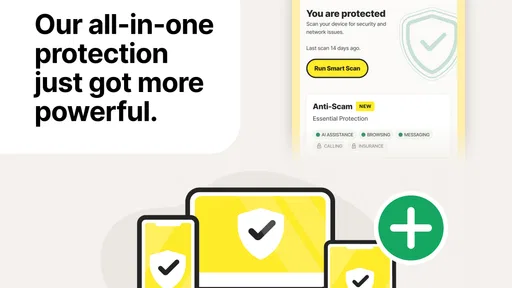
Right off the bat, the app offers a comprehensive range of features. It’s not just about scanning for viruses; Norton360 goes above and beyond with its offerings.
- Real-time Threat Protection: This feature keeps a constant eye on your device, ensuring no nasty malware or viruses sneak in.
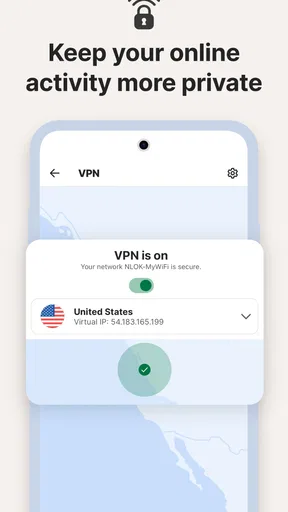
- Secure VPN: I loved the VPN feature, especially when using public Wi-Fi. It gives you that extra layer of security that makes you feel like a secret agent.
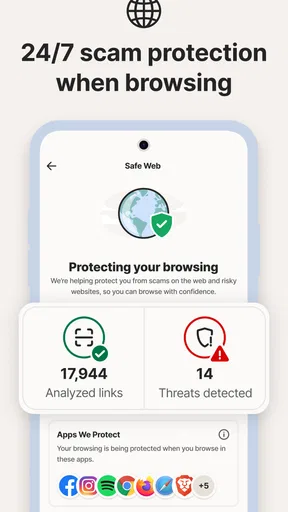
- Web Protection: Browsing the web felt a lot safer knowing that Norton360 was blocking any phishing sites or malicious links.
- Device Security: It’s not just about viruses. Norton360 helps optimize your phone’s performance, so it’s running smoothly all the time.
The first meaningful success is not simply seeing a scan finish; it’s understanding what the result asks you to do. If the app flags something, read the explanation before acting, especially if the recommendation involves changing a setting or removing an item. If everything looks fine, that is a practical moment to check that you know where the scan and protection controls are, so you can return to them when you install something unfamiliar or receive a worrying alert.
How It Fits Into Everyday Use
The app runs quietly in the background, so it doesn't slow down your phone. The scans are thorough but don’t take forever to complete, which is a huge plus in my book. You can set up automatic scans or do them manually—whatever floats your boat.
A realistic routine is to use a manual scan after installing an app from a source you don’t usually use, then check the result rather than running scans repeatedly just for reassurance. Automatic scans suit someone who prefers not to remember, while manual checks give more control to a person who only wants to run one when there’s a reason. Neither habit replaces keeping Android and your apps updated, but together they make the security check easier to fit into normal phone use.
The VPN is a standout feature. It not only masks your IP address but also encrypts your data, which is essential for maintaining privacy. Plus, it doesn’t slow down your internet speed, so streaming and browsing are still seamless.
I’d treat the VPN as a tool for a particular connection, not as a magic privacy switch. For instance, if I’m checking email or browsing while waiting at a café, I’d consider turning it on before using the public network. For activities where a VPN isn’t needed, leaving it off may be simpler. It’s also worth remembering that a VPN changes how your connection is routed; it doesn’t make suspicious links trustworthy or remove the need to protect account passwords.
Understanding Alerts and Avoiding Confusion
I found the app to be really user-friendly. The dashboard is easy to navigate, and you can access all the features without having to jump through hoops. It’s ideal for anyone who might not be super tech-savvy but still wants to keep their devices secure.
One point that can confuse new users is the difference between a feature being available and a particular protection being active or relevant in the moment. I’d open a tool and read its status instead of assuming that installing the app automatically means every safeguard is configured. If an alert appears, use the explanation in the app to decide whether it calls for action; don’t dismiss it just because the phone seems to be working normally.
Notifications are minimal, which I appreciate. You get alerts only when necessary, so it's not bombarding you with constant reminders or warnings.
That quieter approach is pleasant, though it means I wouldn’t rely on notifications as my only way to understand the app. When I have a few minutes, I’d check the dashboard directly and make sure there isn’t a recommendation waiting there. This is especially useful after changing phones or adjusting settings, when it’s easy to forget which protections you enabled.
Privacy Tools and a Practical Trade-Off
One feature I didn’t expect to love as much as I did is the SafeCam. It keeps prying eyes away from your camera, which is super reassuring in today’s privacy-obsessed world.
That kind of camera protection is most valuable to someone who wants an extra check against unwanted access, rather than someone expecting it to solve every privacy concern on the phone. I’d still review which apps I trust and be thoughtful about granting camera access in the first place. The useful habit is to treat SafeCam as one layer in that decision, not as a reason to stop checking app permissions.
There's also a nifty feature to help locate your device if it ever gets lost or stolen. It’s like having a little security guard in your pocket.
For that feature to help in a stressful moment, I’d make a point of finding it in advance and understanding how it is meant to be used. A lost phone is a poor time to explore menus for the first time. It is also sensible to keep other recovery options and account details in order; a locator is helpful, but it should not be your only plan for a missing device.
Choosing It Over a Simpler Alternative
Compared with using only the phone’s built-in security tools, Norton’s appeal is having scanning, web protection, VPN access, camera safeguards, and device-location help together in one app. That can be a good fit if you want a single place to check several kinds of protection, or if you often use public Wi-Fi and want a VPN readily available alongside security tools.
The trade-off is that a bundled suite can be more than a minimalist user needs. If your main concern is avoiding risky downloads and you already use a separate VPN you trust, you may prefer to keep your setup lean rather than add overlapping tools. Likewise, if you want a VPN alone, a dedicated VPN app may be a more focused choice. I’d choose Norton when the combination matters, not just because a long feature list looks reassuring.
There are also paid in-app purchases, so I’d distinguish between installing the free app and deciding whether to buy anything. Take time to read the offer and its terms inside the app before committing, and consider whether the specific feature or plan solves a problem you actually have. A purchase is not automatically necessary just because the app presents an upgrade option.
Who I’d Recommend It To
I’d recommend giving this app a look if you want several mobile-security tools in one place and prefer a clear dashboard to managing separate utilities. It can suit someone who is not especially technical, a frequent public-Wi-Fi user, or a person who wants to check a phone after installing an unfamiliar app. The interface makes it approachable, while the range of tools gives curious users more to explore once the basic scan is familiar.
I’d skip it if you strongly prefer the simplest possible setup, don’t want a suite of extra tools, or already have security and VPN apps that cover the same needs. It may also be a poor fit if you expect any security app to guarantee that a phone can never be compromised. The best value comes when you use the protections that match your routine and are comfortable managing a few related settings.
My Take After Using It
Overall, using Norton360 Antivirus & Security has been a breeze. It’s packed with features that go beyond basic antivirus protection, and it all works together harmoniously to keep your device secure. Whether you’re worried about malware, online privacy, or just keeping your phone running smoothly, Norton360 has got your back.
If you’re looking for a reliable security app that doesn’t require a tech wizard to operate, I’d definitely recommend giving Norton360 a shot. It’s like having a personal digital bodyguard, and honestly, who wouldn’t want that?
My practical advice is to begin with one scan, learn where the VPN and web protections sit, and then decide which extras you’ll actually use. That small first session is enough to tell you whether the app’s broader approach feels useful or unnecessarily busy. For me, its strongest case is the convenience of bringing several protections together; the sensible caveat is to keep your expectations grounded and choose only the features that fit the way you use your phone.
Privacy and Permissions
See what permissions an app requests and how it handles your data.
- Identity
- find accounts on the device
- Contacts
- find accounts on the device, read your contacts
- Location
- approximate location (network-based), precise location (GPS and network-based)
- SMS
- read your text messages (SMS or MMS), receive text messages (SMS)
- Phone
- reroute outgoing calls, read call log, read phone status and identity
- Photos/Media/Files
- access USB storage filesystem, read the contents of your USB storage, modify or delete the contents of your USB storage
- Storage
- read the contents of your USB storage, modify or delete the contents of your USB storage
- Camera
- take pictures and videos
- Wi-Fi connection information
- view Wi-Fi connections
- Device ID & call information
- read phone status and identity
- Other
- view network connections, change network connectivity, connect and disconnect from Wi-Fi, control flashlight, full network access, close other apps, run at startup, reorder running apps, draw over other apps, prevent device from sleeping, install shortcuts, uninstall shortcuts, Google Play license check
Verdict
Strengths of Norton360 Antivirus & Security
- Comprehensive malware protection.
- Includes VPN for secure browsing.
- Identity theft protection feature.
- Parental controls for family safety.
- Frequent updates for new threats.
Limitations of Norton360 Antivirus & Security
- Can slow down device performance.
- Premium features can be pricey.
- Occasional false positive alerts.
- Complex interface for new users.
- Limited features on free version.
Other Releases by NortonMobile
View All
Norton VPN – Fast & Secure
Tools4.4

Norton Cleaner – Junk removal
Tools4.6

LifeLock Identity by Norton
Finance4.3

Norton Family Parental Control
Parenting3.2
Similar Picks in This Category
View All
Google LLC4.0

Gboard - the Google Keyboard
Google LLC4.5

Google Play services
Google LLC4.3

Google Play Store
Google LLC4.9

Files by Google
Google LLC4.5

SHAREit: Transfer, Share Files
Smart Media4U Technology Pte.Ltd.4.3
Frequently Asked Questions
What features does Norton360 Antivirus & Security offer?
Norton360 Antivirus & Security provides comprehensive protection for your device, including real-time threat detection, firewall protection, and secure VPN for online privacy. It also offers password management, dark web monitoring, and parental controls. These features ensure that your device remains secure from various cyber threats and helps you manage your online safety effectively.
Is Norton360 Antivirus & Security free to use?
Norton360 offers a free trial for new users, allowing you to explore its features before committing. However, full access requires a subscription. Various plans are available, catering to different needs and budgets. Each plan comes with a set of features, so reviewing them can help you select the best option for your requirements.
How does Norton360 Antivirus & Security impact device performance?
Norton360 is designed to run efficiently in the background, minimizing its impact on device performance. While some users may notice slight slowdowns during full scans, the app is optimized to ensure that daily operations remain unaffected. Its lightweight design ensures that it provides robust protection without compromising device speed.
Can Norton360 Antivirus & Security protect multiple devices?
Yes, Norton360 offers plans that allow protection for multiple devices across different platforms, including Windows, macOS, Android, and iOS. This multi-device capability ensures that all your devices are secured under a single subscription, providing a seamless and unified security solution for your entire digital ecosystem.
What kind of customer support is available for Norton360 users?
Norton360 provides 24/7 customer support through various channels, including live chat, phone, and an extensive online knowledge base. This ensures that users can quickly resolve any issues or inquiries they may have, enhancing the overall user experience and providing reliable assistance whenever needed.
